Boards
Scrum and Kanban boards: reading the board, moving cards, filtering, swimlanes, column limits, card layout and colours, and creating or configuring a board.
Opening a board
Boards → Boards lists the boards you can see; pick one. A Scrum board shows the active sprint, a Kanban board shows continuous flow with no sprints. If a Scrum board has no active sprint it says so and offers Plan a sprint, which takes you to the backlog.
Columns and cards
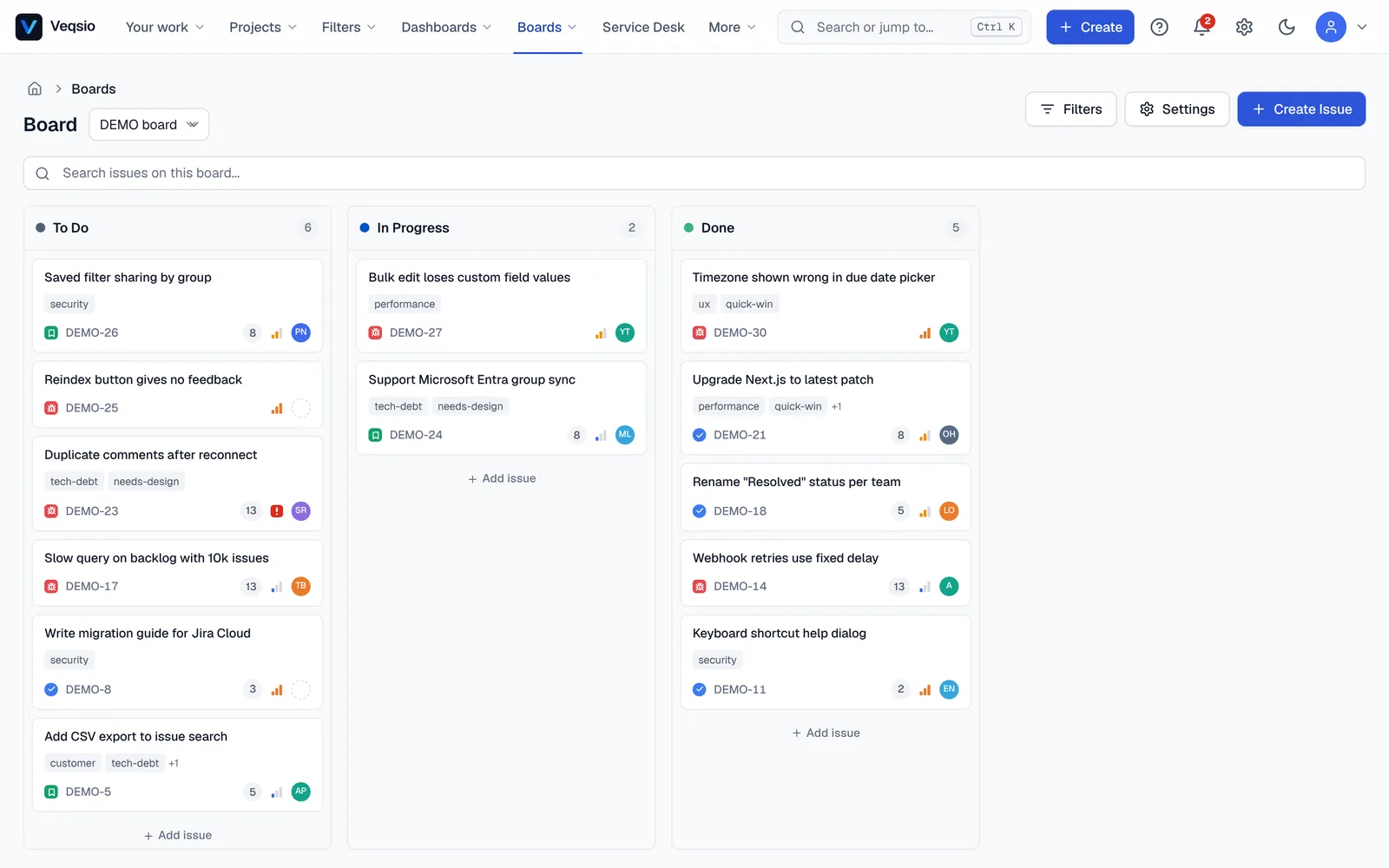
Each column is one or more statuses of your workflow. A card shows the key, summary, type, priority, assignee and, if flagged, a flag. Click a card to open the issue in a side panel (or the full page); drag it to another column to move it through the workflow. If the move needs input — a resolution, a required field — the transition dialog opens first; if the workflow does not allow the move, the card returns and you are told why.
The board refreshes live: other people’s moves and edits appear without reloading, and an Also viewing indicator shows who else has the board open.
Finding cards
- The search box (
/) filters cards by text. - Drop-downs narrow by assignee (including Unassigned), label and priority.
- Quick filters are saved one-click filters defined for the board (below) — for example “My issues” or “Blocked”.
Working on several cards
Select cards and open the command line with Ctrl+Alt+J (Cmd+Alt+J on a Mac) to apply a typed command to all of them; Ctrl+Shift+Enter repeats the last command.
Board settings
Click Board settings (the gear above the board). You need to administer the board. It has these sections:
| Section | What you set |
|---|---|
| Columns | Name, the statuses in each column, and Min WIP / Max WIP. Add a column with New Column, remove one with the trash icon, then Save Columns. |
| Swimlanes | Group by: no swimlanes, assignee, epic, issue type, priority, project or status. Each value becomes a horizontal lane across all columns. |
| Quick Filters | A name plus a JQL condition, such as assignee = currentUser() or flagged = true. |
| Card layout | Density (Comfortable or Compact) and which extra fields appear on each card. Summary, key and flag are always shown. |
| Card colours | Tint and colour the left border of each card by priority, issue type, assignee, epic or status; a legend name can be set per colour. |
Work-in-progress limits
A column’s Max WIP is the most cards it should hold; Min WIP is the least. Agree on them as a team to see bottlenecks and stop starting new work before finishing what is in progress.
Creating a board
On the backlog page choose Create Scrum board, pick a project and give the board a name (for example “Team board”). New projects already come with a board from their template; you only need this for an extra team board. A board shows the issues of its filter, so one board can span several projects.
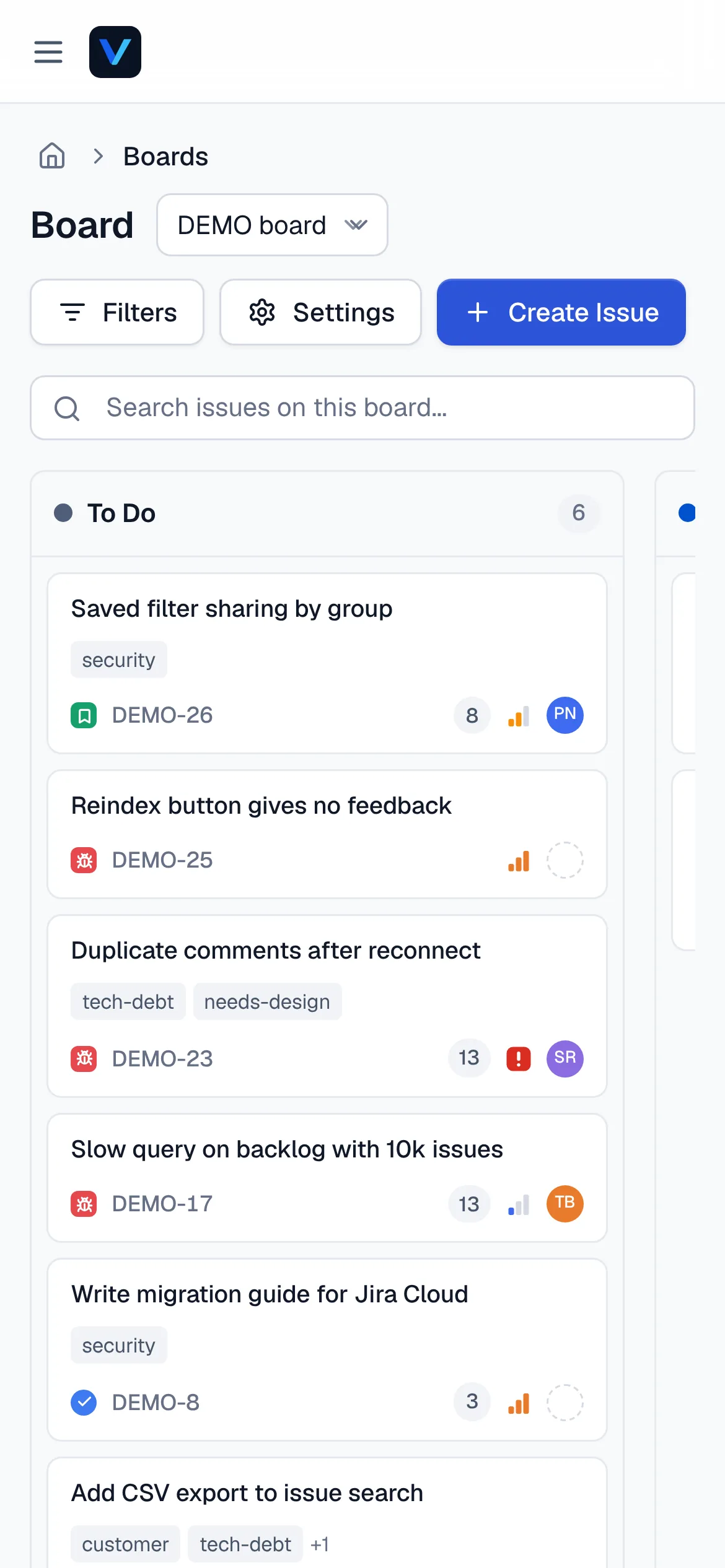
On a phone
The board lays out for a narrow screen: scroll sideways through the columns and tap a card to open it. Install Veqsio as an app from your browser for a full-screen experience (see Sign in & first steps).