
Service desk: overview & setup
Create a service desk from a template, request types and the form builder, customers and organizations, agents, canned responses, knowledge base and reports.
What the service desk is
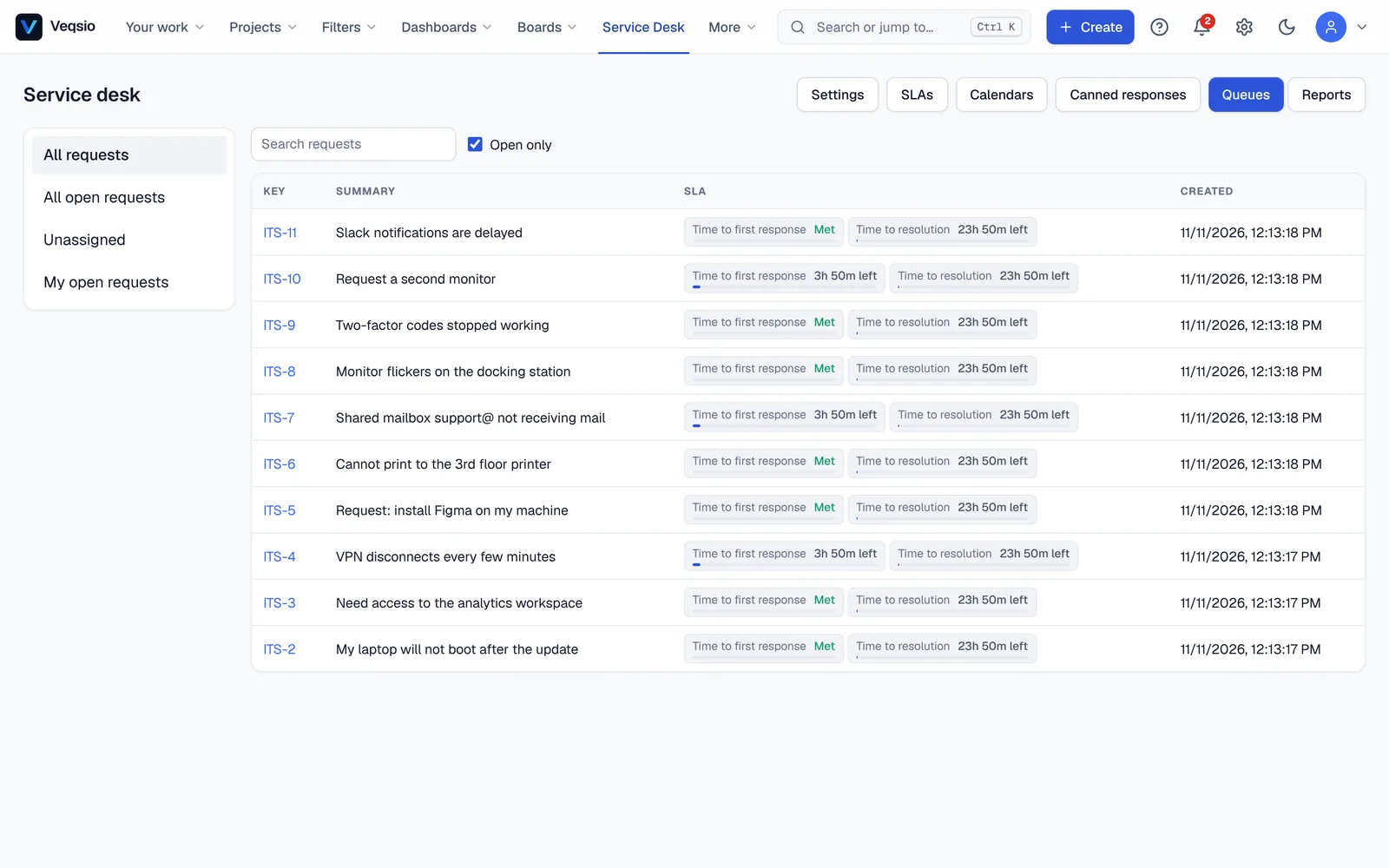
A service desk turns questions from people outside your team — customers, or colleagues in other departments — into issues your agents work on. Customers use a simple portal, never your normal project screens; agents work in queues with live SLA timers. Each request is an ordinary issue, so everything in this guide (workflows, automation, reports, JQL) also applies to it.
Open Service Desk in the top bar for the desks you work on.
Who is who
| Role | Can |
|---|---|
| Customer | Raise and follow their own requests on the portal, comment, attach files, rate the service. |
| Agent | Work the queues, reply to customers, add internal notes, use canned responses and see reports. |
| Administrator (of the desk) | Everything an agent can, plus all desk settings. |
Service desk data is hidden from everyone else: a person who is not staff of a desk gets “not found” for it.
Creating a service desk
- Go to Service Desk and press Create service desk.
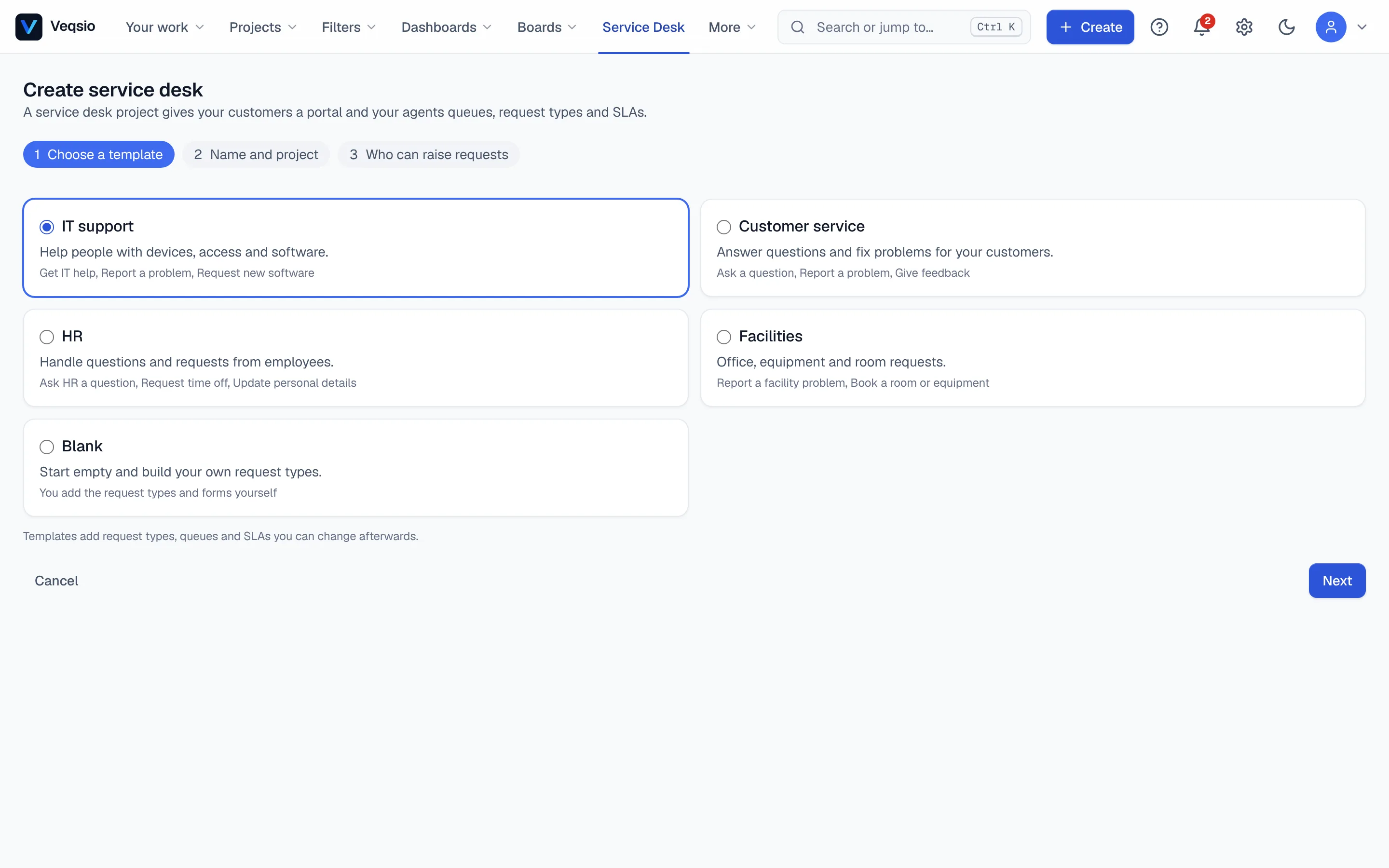
- Enter a Name and choose a Template — templates add request types, queues and SLAs you can change afterwards (for example IT support; with the ITSM module also IT service management).
- Decide where requests live: Create a new project (a new project with the default schemes — give it a key) or Use an existing project you administer.
- Set the Portal address, the short name in the portal’s web address.
- Choose Who can raise requests? — Anyone with an account can sign up (signed-in users become customers the first time they open the portal) or Invited customers only (you add them by e-mail).
- Press Create service desk.
Desk settings
Open the desk and press Settings. The sections:
| Section | Purpose |
|---|---|
| Service desk details | Name, welcome message, logo URL, accent colour and portal address. |
| Portal | Enable or disable the portal, its title and introduction, who can sign up, and the groups that organise request types. |
| Request types | What customers can ask for; each has its own form. |
| Queues | Saved views of requests for agents. |
| Customers | Customers, organizations, agents and roles. |
| Knowledge base | Articles suggested to customers. |
| Notifications | Which e-mails customers and agents get. |
| Approvals | Approval templates for requests. |
The desk page itself also links to SLAs, Calendars, Canned responses, Email channel, Customer satisfaction, Insights and Automation — covered in Queues, SLA & email.
Request types and the form builder
A request type is one thing a customer can ask for: “Report an incident”, “Request a laptop”. Under Settings → Request types press Create request type: give it a Name and Description, pick the issue type created for each request and a portal group (types with no group appear under “General”). Create and edit form opens the builder.
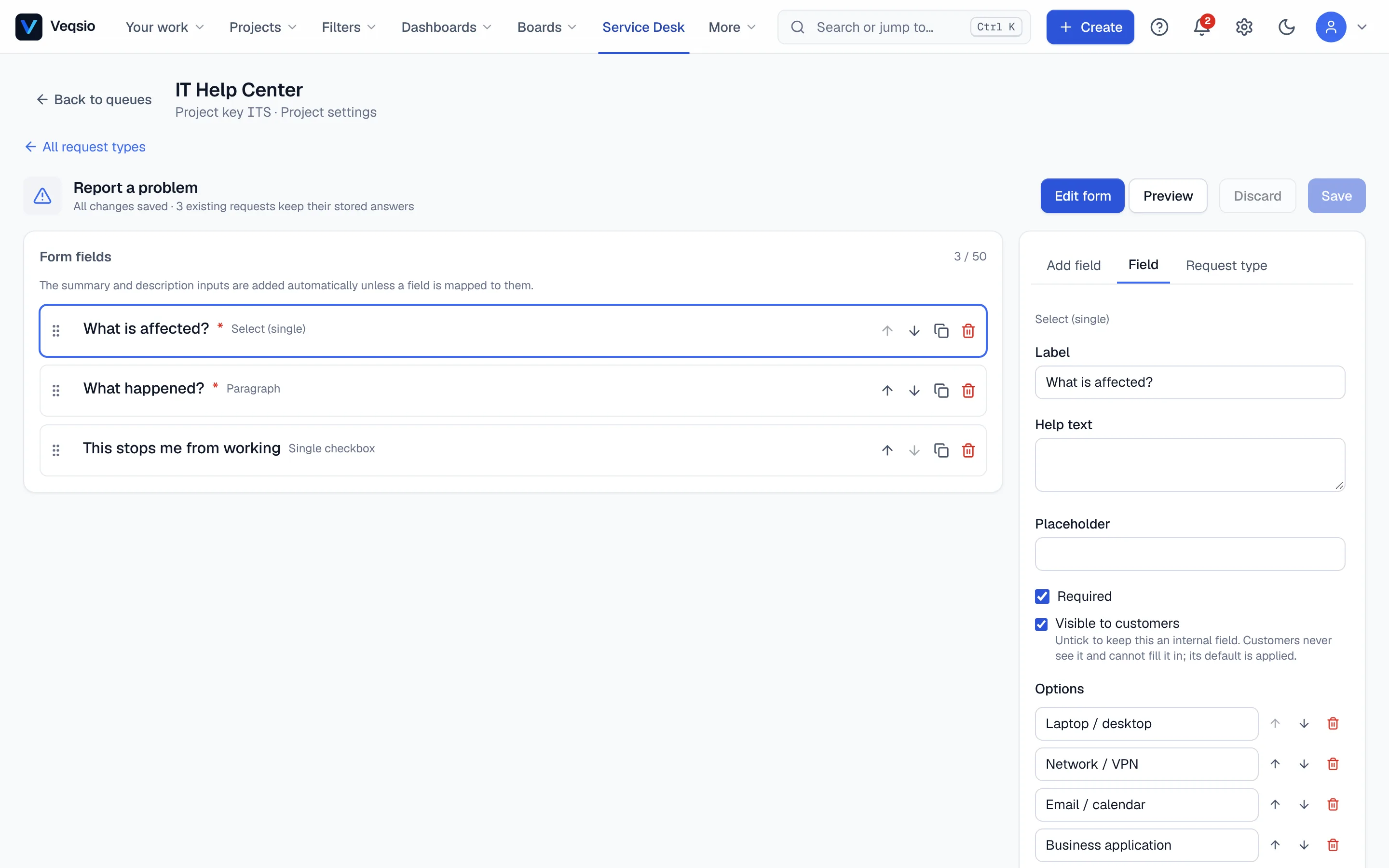
- Add fields from the field palette (Add field) and arrange them on the form canvas.
- Each field has properties: label, whether it is required, help text, and a mapping to an issue field. The summary and description inputs are added automatically unless a field is mapped to them.
- Fields can be shown only when another field has a certain value, and are validated before sending.
- The Customer preview shows the form as customers see it; try it — conditions and validation work. Nothing is sent from the preview except through checks.
- Only desk administrators can change forms; the page says Unsaved changes until you save, and highlights problems to fix.
You can reorder request types and duplicate a type to start from a similar one.
Customers and organizations
Settings → Customers has tabs for Customers, Organizations and Agents and roles.
- Add customer by e-mail and name. For an invite-only desk, this is how people get access.
- New organization groups customers (a company). Use organizations to keep a company’s customers together.
- Agents and roles — add agents and administrators, with a Role for each.
Canned responses
Under Canned responses save a Title and Text for answers you give often. In a request, agents insert one into their reply and edit it before sending.
Knowledge base
Under Settings → Knowledge base press Create article: a title, text, labels (comma separated) and a Published (visible to customers) tick. Published articles are suggested to customers while they write a request — up to three matches with a short excerpt — and customers can say whether an article helped. The Insights page shows article views and helpful votes, popular searches, and searches that found nothing — a to-do list for new articles.
Reports
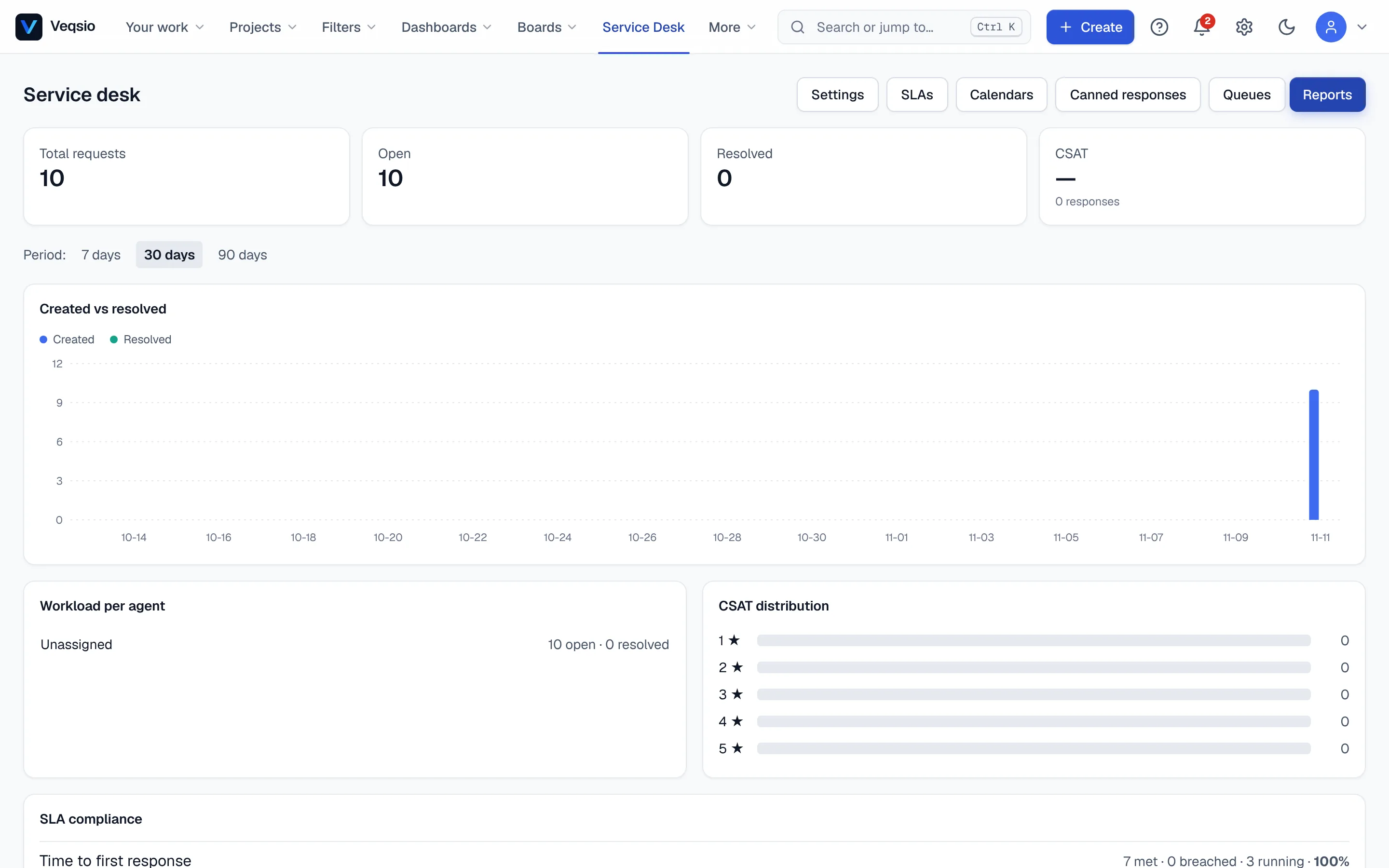
The desk summary page shows counters (Total requests, Open, Resolved, CSAT), SLA compliance, Created vs resolved for the period you choose, Workload per agent and the CSAT distribution.
IT service management (Enterprise module)
With the ITSM module a desk can use incident, problem and change management: an impact × urgency priority matrix, acknowledgement tracking, major-incident handling with stakeholder e-mail, postmortems, known errors with workarounds, scored change risk, CAB and ECAB approvals, a change calendar with conflict detection and maintenance windows, and MTTA/MTTR reports. All of it is agent-side — customers only ever see their own request, its public comments and its status.