
Workflows
Statuses and transitions, the visual workflow designer, conditions, validators and post-functions, workflow schemes that apply workflows to projects, and governance.
Concepts
- A status is a step an issue can be in (To Do, In Review, Done). Every status belongs to a group — Backlog, To do, In progress, Done or Cancelled — which reports and boards use for progress. A status that issues are in cannot be deleted.
- A transition is an arrow from one status to another with a name (“Start review”). It is what the issue’s status button offers.
- A workflow is a set of statuses and transitions. A workflow scheme says which workflow each issue type in a project uses.
The workflow designer
Open Workflows, create one or pick an existing workflow and open it. The designer draws statuses as boxes and transitions as arrows.
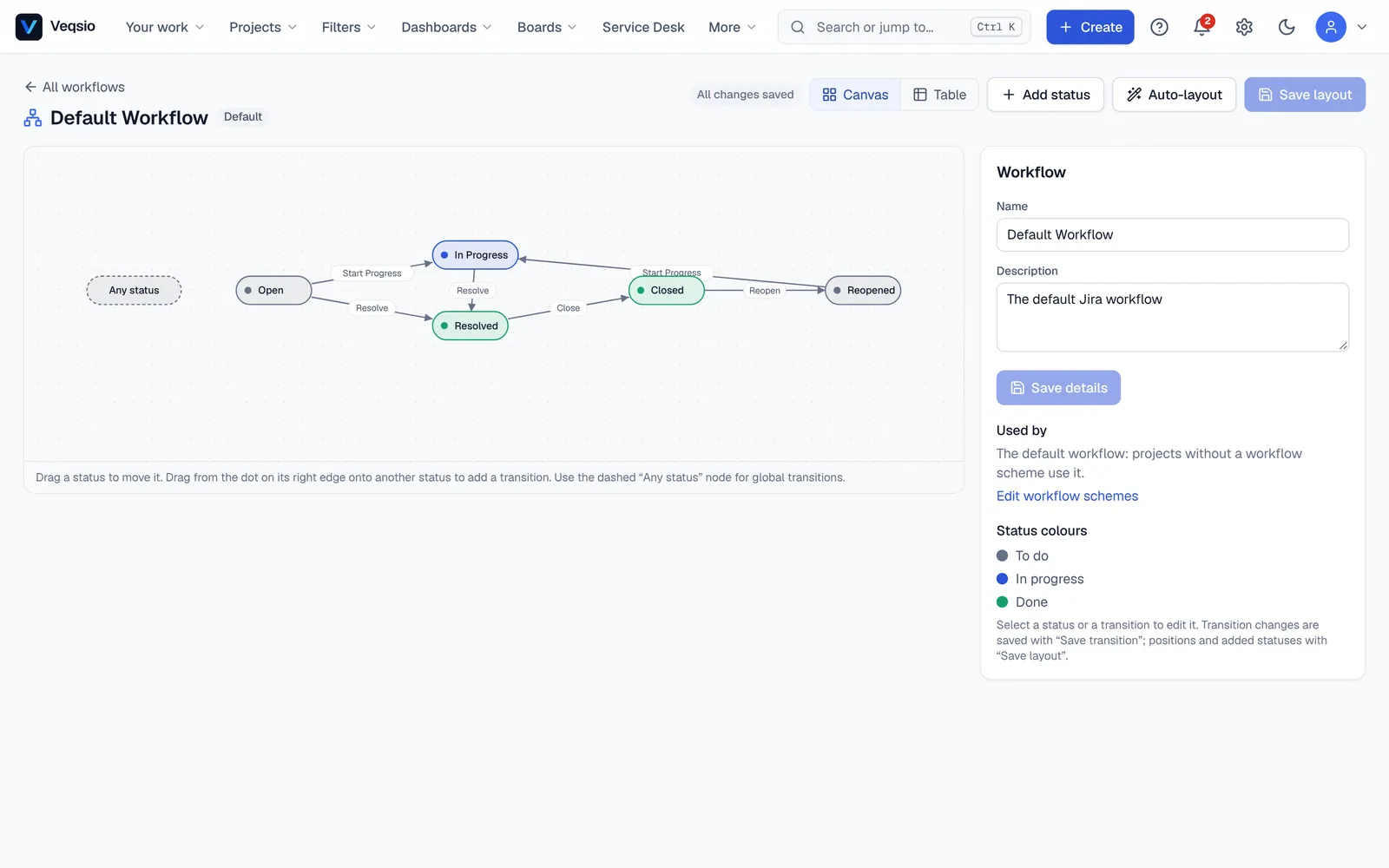
- Add the statuses you need and choose each one’s group.
- Draw transitions between them and name them. A transition can also be allowed from any status.
- Select a transition to set its properties (below).
- Save. Exactly one workflow is the default, used where no scheme says otherwise.
What you can set on a transition
Who may use it — conditions
Conditions decide whether the transition is offered to a person. The panel says in words who may use it.
user_in_project_role— the user holds a role in the project.user_in_group— the user is in a group.permission_check— the user has a permission.issue_field_value— a field has a given value (for example only the assignee may “Resolve”).
What must be true — validators
Validators block the transition with an explanation if the data is not right: field_required (a field must be filled), field_regex (must match a pattern), field_value, and approval_required (the latest approval on the issue must be approved).
What happens next — post-functions
Post-functions run after the transition: update_field, assign_to_user, set_resolution, clear_field, add_comment, update_date, request_approval (creates an approval from a template) and fire_event.
Screens
A transition screen asks the person for fields (resolution, a comment, a reviewer) in a dialog before the transition runs. See Fields & screens.
Applying a workflow to projects
Create a workflow scheme under Workflow Schemes: map each issue type to a workflow (with a default for the rest). Assign the scheme to a project from the project’s Schemes tab. Issues must be in a status that exists in the workflow they end up with, so test a new workflow on a throwaway project first.
Governance
- Allow new issues in this status — close a status to newly created issues (for example “Done”) so nothing starts there.
- Change history — the designer lists who created, renamed or re-routed transitions and who changed conditions, validators and post-functions.
- Workflow governance setting (Instance settings): any (default) lets project administrators pick workflow schemes; constrained restricts this to administrators.
Design tips
- Keep it short: five to seven statuses beat fifteen.
- Use groups honestly — a status in the Done group ends the issue in reports and progress.
- Prefer a few clearly named transitions to “move to any status”, so the status button tells people what to do next.
- Use Cancelled for dropped work so it does not distort velocity.