
Sign in & first steps
Logging in, the navigation map, the command palette, keyboard shortcuts, your profile, personal settings and access tokens.
Signing in
Open your Veqsio address and enter your username and password. If your administrator has turned on single sign-on, a Sign in with Microsoft (or your company's identity provider) button appears under the form — use it instead. Forgot password? sends a reset link to your e-mail address; the link works once and expires.
anna with the password demo12345 (every demo user shares it), or press Fill in for me.After a period of inactivity, or when the administrator's maximum session length is reached, you are signed out and returned to the login screen. Too many failed attempts lock the account for a short time; the thresholds are set by your administrator.
Your home page
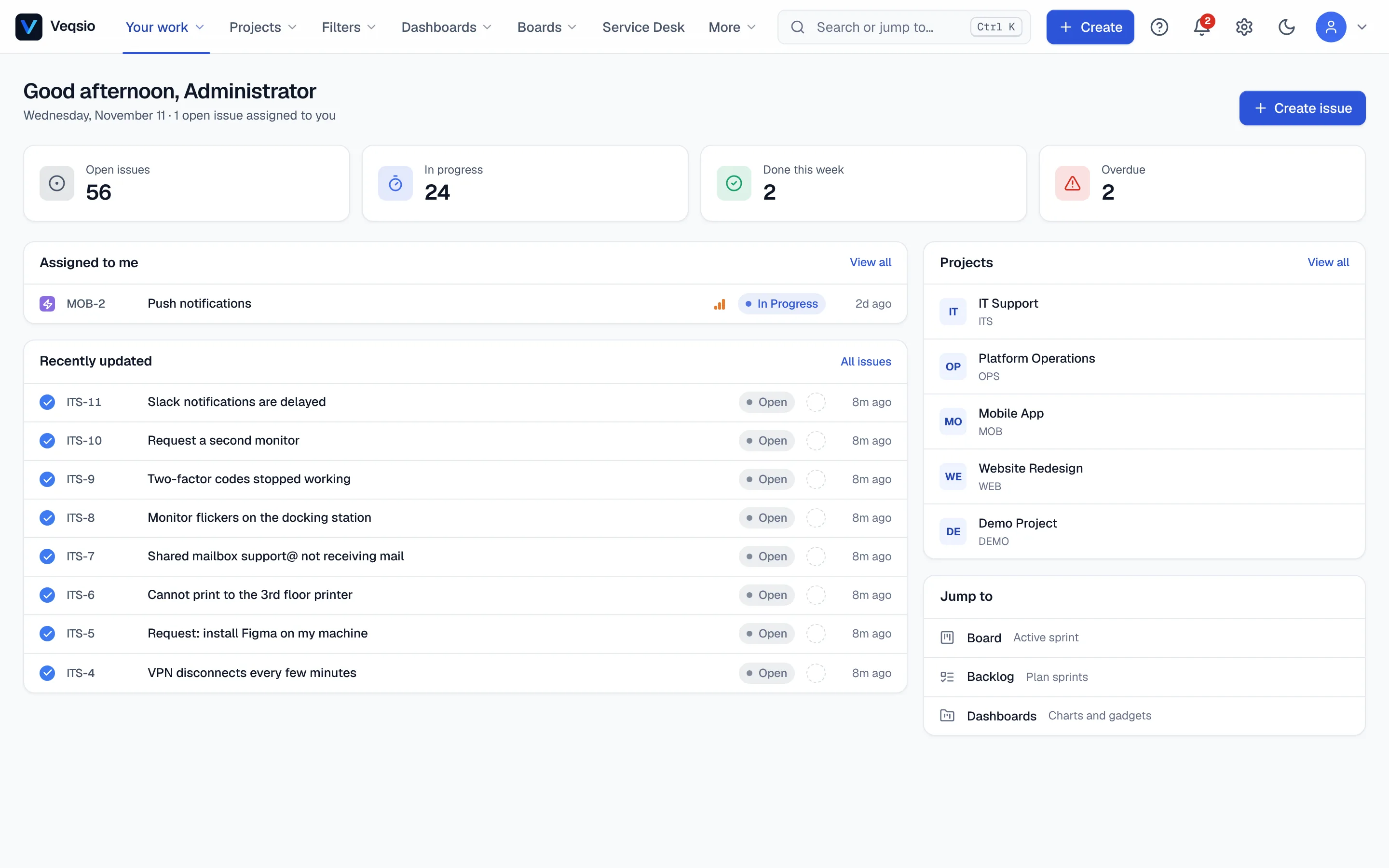
After signing in you land on Your work → Home (/dashboard). It greets you and shows:
- Assigned to me — open issues that are yours, with a View all link to the full list.
- Recently updated — issues that changed lately in projects you can see.
- Projects — shortcuts to the projects you use.
- Jump to — quick links into the rest of the product.
- A Create issue button.
Finding your way around
The top bar has the same groups on every page. Some entries only appear when your administrator has the feature switched on.
| Menu | What is inside |
|---|---|
| Your work | Home, My dashboards, Workspace overview, My approvals, Profile |
| Projects | Your recent projects, All projects, Initiatives, Intake |
| Filters | Search issues, Saved filters, Views, Create issue |
| Dashboards | View all dashboards |
| Boards | Boards (Scrum and Kanban), Backlog |
| Service Desk | Agent workspace for service desk projects |
| More | Reports, Pages, Roadmap, Calendar, Automation |
The gear menu holds Personal settings for everyone and Administration for administrators (see Instance & operations). If an installed app adds pages they appear under Apps. On a phone the same menus are in the hamburger button, and a project's board is laid out for a narrow screen.
The command palette
Press Ctrl+K (Cmd+K on a Mac) anywhere. Type part of a page name, an issue key such as DEMO-12, a project or a wiki page and press Enter. It is the fastest way to move around.
Keyboard shortcuts
Press ? or Ctrl+/ to see the shortcuts that apply to the page you are on. Plain-letter shortcuts are ignored while you type in a field.
| Where | Keys | Action |
|---|---|---|
| Everywhere | Ctrl+K | Command palette |
| Everywhere | c / Shift+C | Create issue / create project |
| Everywhere | g then i d b p a | Go to issues, dashboards, boards, projects, administration |
| Everywhere | Ctrl+Alt+J | Command line for the selected issues; Ctrl+Shift+Enter repeats the last command |
| Issue list | / | Focus the search box |
| Issue list | j k (or arrows), Home, End | Move the focus |
| Issue list | Space or x; Shift+J/Shift+K | Select an issue; extend the selection |
| Issue list | Enter / o, p | Open the issue; peek at it in a side panel |
| Issue list | → / F3, ← / Esc | Expand or collapse the inline preview |
| Issue list | b, e / F2 | Bulk change; edit the summary in place |
| Issue view | a, i | Assign; assign to me |
| Issue view | m, e, l, f | Comment; edit description; edit labels; flag as an impediment |
| Issue view | ., [ ] | Quick operations; previous / next issue in the list you came from |
| Board | / | Focus the card filter |
Your profile
Your work → Profile shows your name, your username and the work attached to you (issues you are assigned and what you did recently). Use the edit button to change your Display Name, the name other people see on issues and comments.
Personal settings
Open Personal settings from the gear menu.
- Language — menus and common labels in this browser. E-mails and notifications are not translated yet.
- Push notifications — turn on browser notifications for assignments, @mentions and comments on issues you follow. Your browser asks for permission once.
- Theme — the sun/moon button in the top bar switches between the light and the dark theme.
Personal access tokens
Scripts and AI assistants authenticate with a token instead of your password. Create one under Profile → Access tokens: give it a name, choose the scopes it may use (read-only is the safe default) and how long it lasts (Expires after). The secret is shown once — copy it immediately. A token can never do more than you can: your permissions still apply. Revoke a token at any time from the same page. Details are in API & integrations.
Install it as an app
Veqsio is a progressive web app. In Chrome, Edge or Safari choose Install / Add to Home Screen and it opens in its own window with the instance's name and icon. When the network is down an offline page appears; no issue data is stored on your device.