
Backlog & sprints
The backlog, creating and ordering work, planning a sprint, starting and completing it, carrying unfinished issues over, sprint automation and capacity planning.
The backlog
Boards → Backlog is where you plan. The top shows the sprints (the active one first, then future ones), underneath is the backlog — issues that are not in any sprint, in priority order. Each sprint header shows its name, goal, dates and three point totals: To do points, In progress points and Done points.
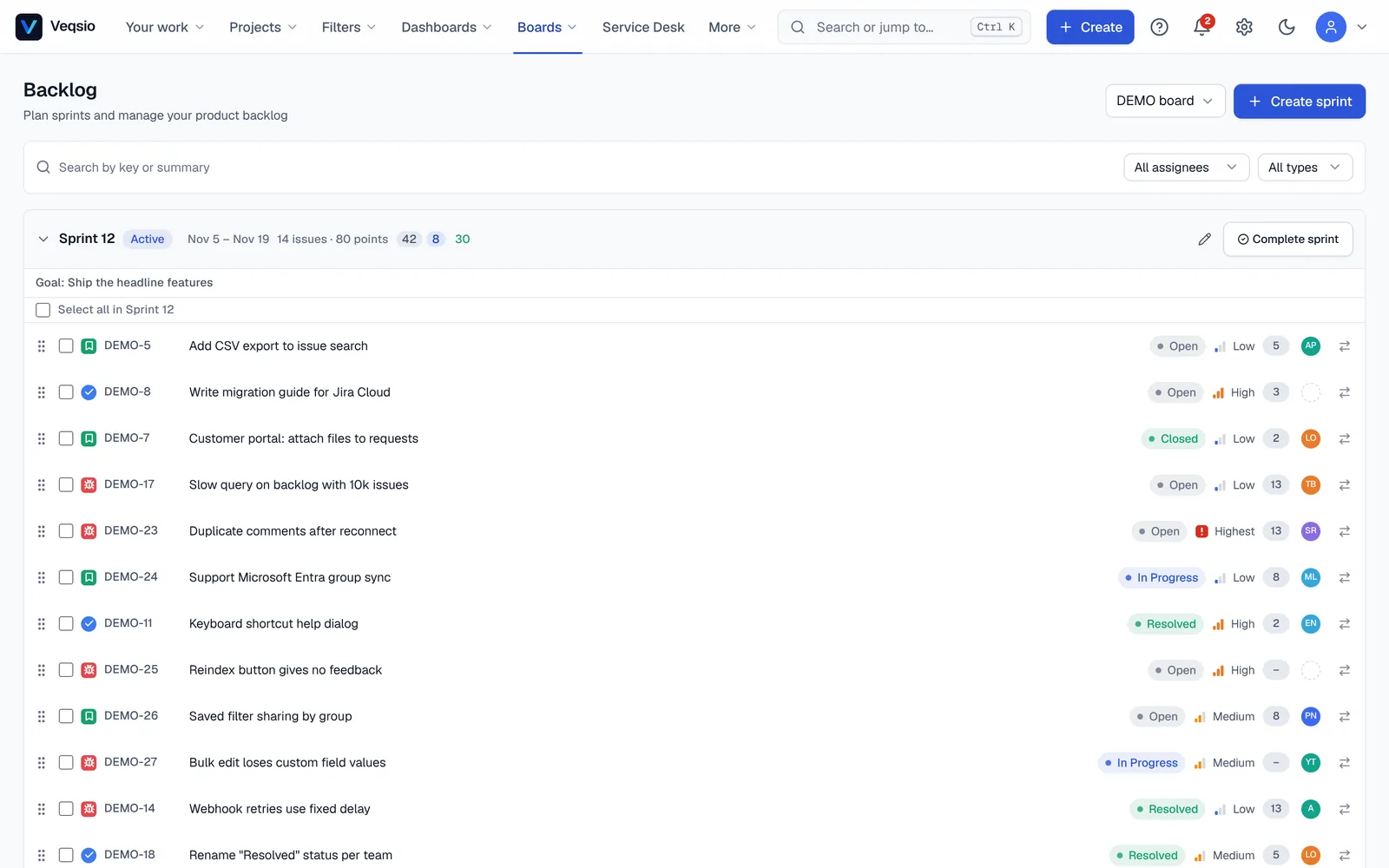
- Create an issue at the bottom of the list (inline) — type a summary and press
Enter. - Rank by dragging an issue up or down. The order is the backlog priority.
- Open an issue by clicking it; edit story points and other fields in place.
- Filters above the list narrow what is shown; Load more fetches further pages for long backlogs.
Planning a sprint
- Press Create sprint. Give it a Sprint name, an optional Sprint goal (“What should this sprint achieve?”), and a Start date and End date.
- Move issues into it: drag them from the backlog, or use Move to… on an issue. An empty sprint reminds you to do exactly that.
- Check the point totals against what the team usually delivers (see velocity).
- Press Start sprint. The board now shows the sprint, and the sprint-started event can notify people.
You can edit (Edit sprint) or delete (Delete sprint) a sprint that has not started; issues return to the backlog.
Completing a sprint
When the sprint ends, press Complete sprint. The dialog tells you how many issues are not done and asks where they go: the backlog, or another sprint (Move the issues that are not done to). If every issue is done it says so. Completed sprints move to the Completed list and feed the sprint report, velocity and burndown.
Sprint automation
Teams that run back-to-back sprints can set Sprint automation on the backlog: when someone completes a sprint, Veqsio creates the next sprint and moves unfinished issues to either the next sprint or the backlog. The person completing the sprint can still choose another target in the dialog.
Story points
Estimate in story points on the issue (or inline in the backlog); sprint headers add them up per status group. If your team estimates in hours, the epic report and burndown can use time instead of points (see Reports). Cancelled issues are left out of every total.
Capacity
Capacity against load per team and sprint is part of the Plans module (Enterprise): it compares each person’s available time with the work assigned. See Roadmap & calendar.
Kanban teams
A Kanban board has no sprints; use the backlog only to order work and let the board columns and WIP limits control flow. The cumulative flow and control chart reports are made for Kanban.