
Customer portal
How customers use the portal: signing in, raising a request, following it, replying, attaching files, sharing it with colleagues, approving and rating the service.
What customers see
The portal is a simple, branded website for a service desk, at /portal/<address>. Customers never see your projects, boards or other tickets — only their own requests. It shows your welcome message, a search box and the request types grouped as you arranged them.
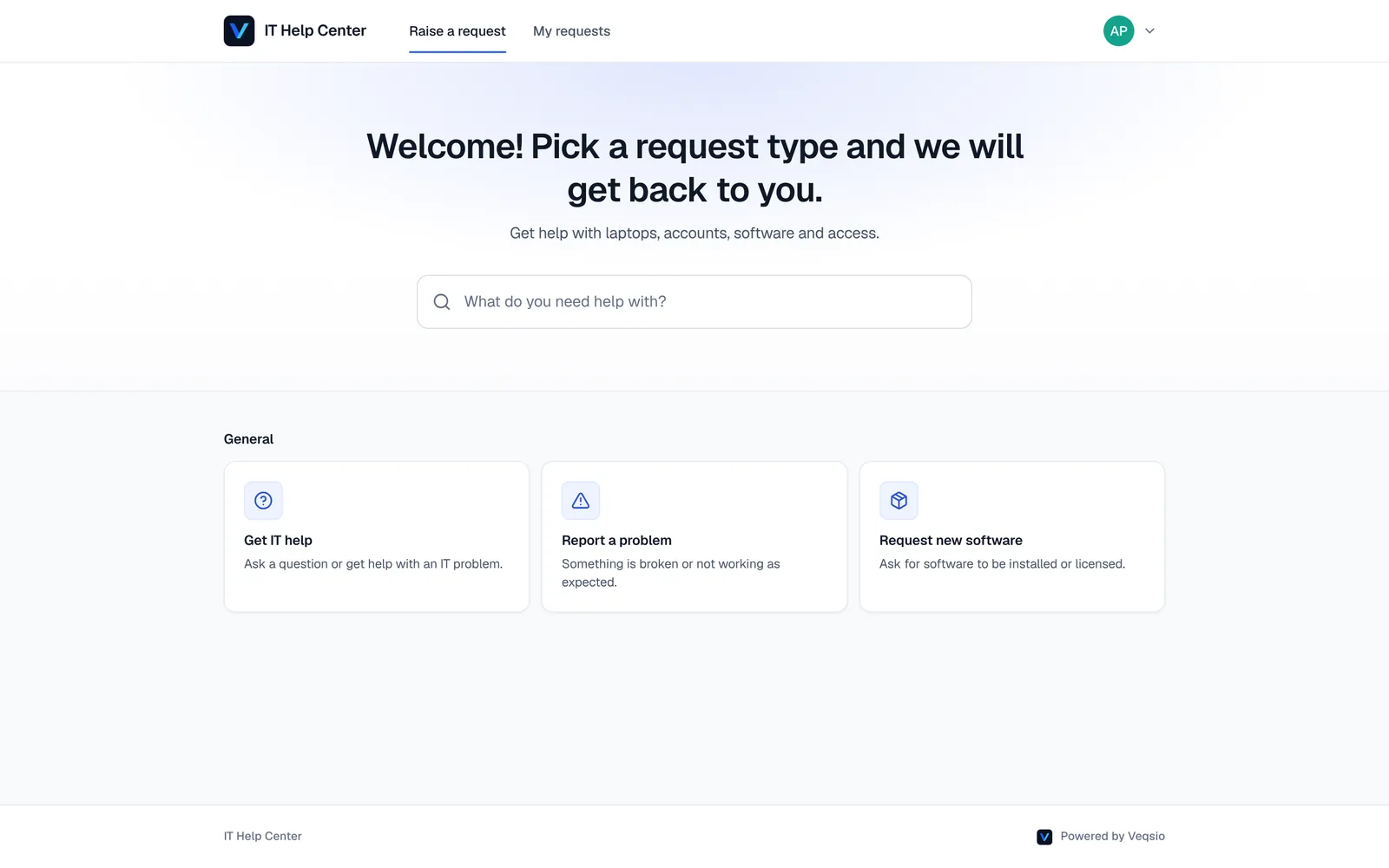
Getting in
Customers sign in with an account. On a desk where anyone with an account can sign up, the first time a signed-in person opens the portal they become a customer. On an invited customers only desk, an agent adds their e-mail address first; other people cannot raise requests.
Raising a request
- Pick a request type, or search for what you need.
- Fill in the form. As you type the summary the portal suggests up to three knowledge-base articles that may already answer your question — open one and mark whether it helped.
- Fields marked required must be filled; some fields appear only when an earlier answer calls for them.
- Attach files if asked, then send. The request gets a key such as
HELP-42and appears under My requests.
Following a request
My requests lists everything you raised, with tabs by status. Open a request to see its status, the conversation and the details you submitted.
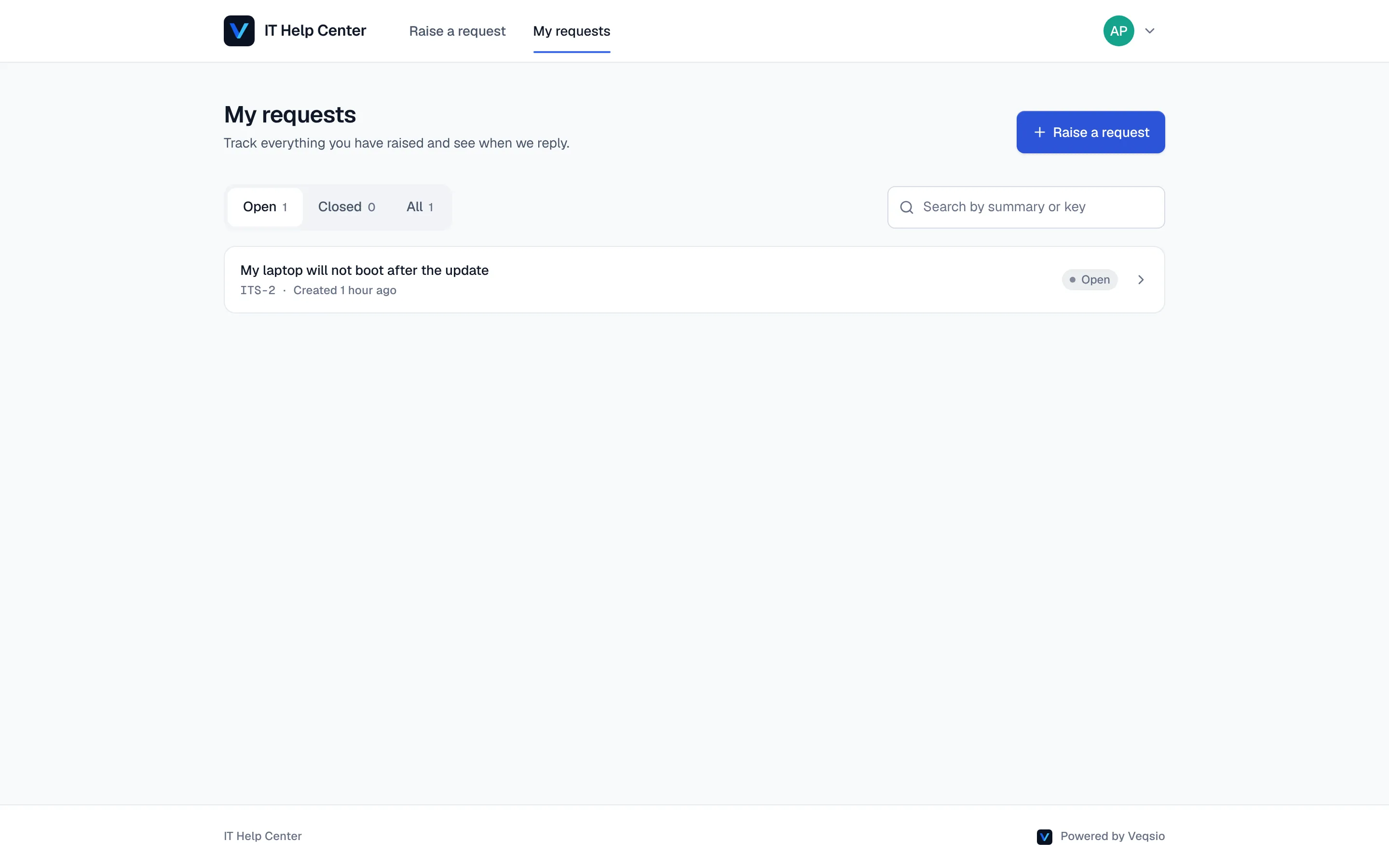
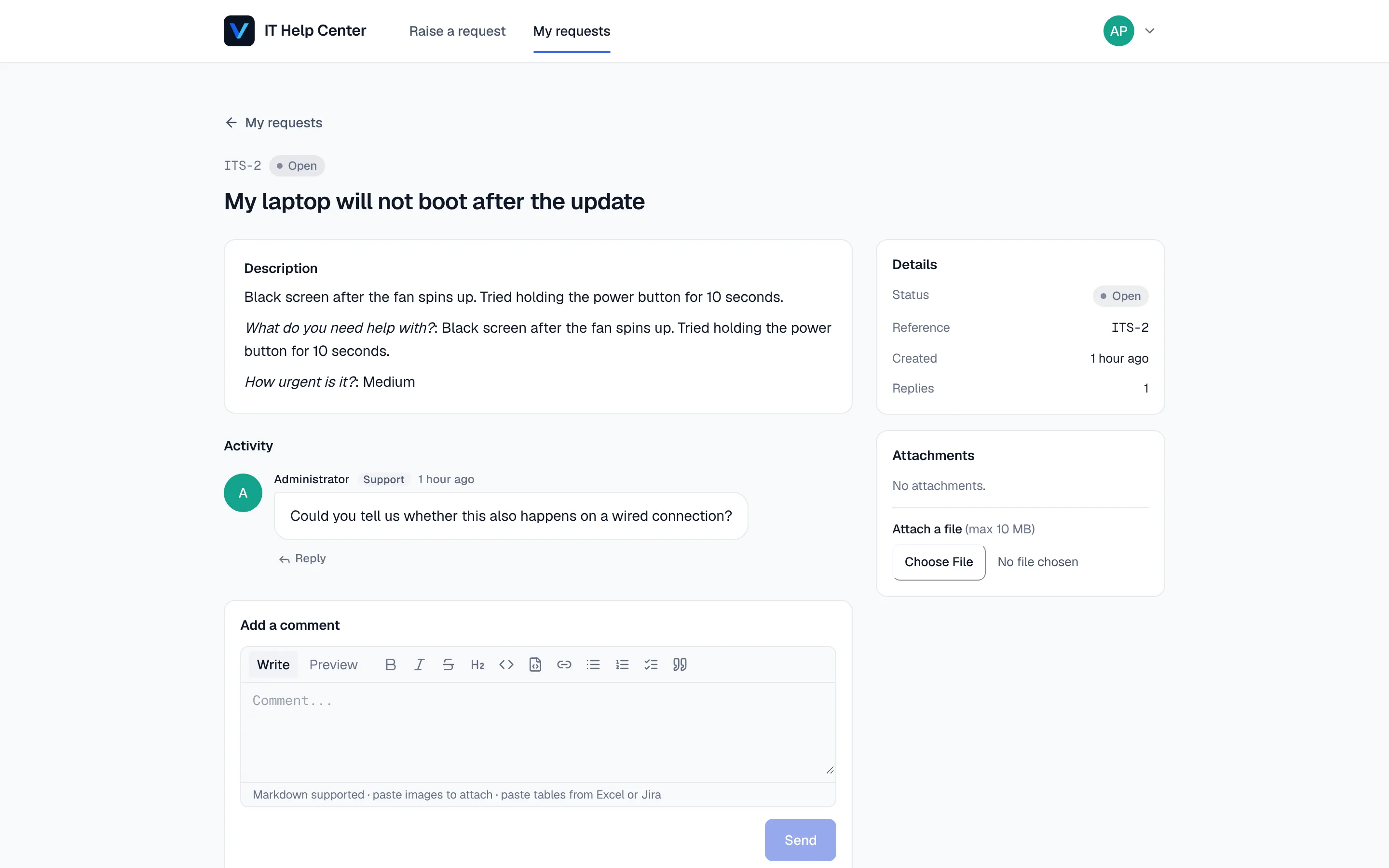
- Reply to the agent — your comment is public and the agent is told.
- Add attachments to the request.
- Share with colleagues by adding participants: they receive updates and can reply.
- You only see public comments. Internal notes between agents are never shown.
Approving on the portal
If a customer is named as an approver for a request, the portal shows the request waiting for their decision; they choose approve or decline there, no agent access needed.
Using e-mail instead
If the desk has an e-mail channel, customers can simply write to the support address: the first message becomes a request and later replies are added to it as public comments. They never have to open the portal.
Rating the service
When a request is resolved the customer can leave a satisfaction rating and a comment. Agents see the results under Customer satisfaction, including a follow-up queue for low scores.
Setting the portal up (desk administrators)
- Settings → Portal: turn the portal on or off, set its title and introduction, choose whether anyone can sign up, and add request type groups (“Hardware”, “Access”…) so customers find things quickly.
- Settings → Service desk details: the welcome message, logo URL and accent colour the customer sees.
- Check the result as a customer in the form builder’s Customer preview before publishing a new request type.