
Projects & templates
Creating a project from a template, the project page, every tab of project settings, components, versions, releases, people, archiving and deleting.
The project list
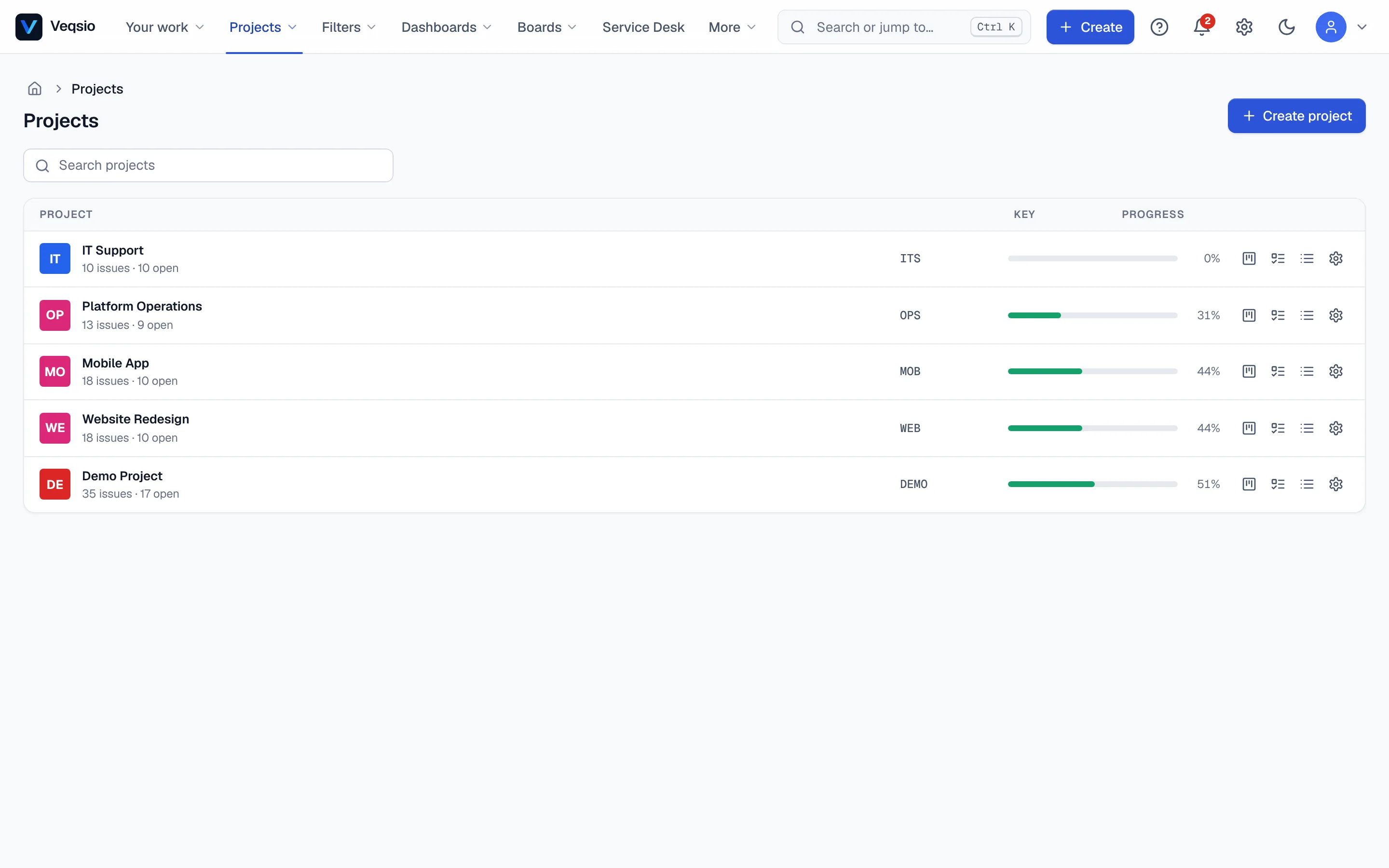
Projects → All projects lists the projects you may browse, with progress and shortcuts to each one's board and issues. The Projects menu in the top bar also keeps your recent projects. Archived projects are hidden from every list and default search.
Creating a project
Press Create project (or Shift+C). Enter a name and a key — 2 to 10 characters (capital letters and digits, starting with a letter) that prefix every issue key (DEMO-12). The key is permanent and stays reserved even after the project is archived, so choose it carefully.
Under Start from pick a template; it decides the board and a few starter extras. Everything else (statuses, workflows, permissions) follows your instance defaults.
| Template | Board | Starter extras |
|---|---|---|
| Software (Scrum) | Scrum board with sprints | version 1.0; issue templates Bug report, User story, Technical task |
| Kanban | Kanban board | issue templates Task, Bug report |
| Business / task tracking | Kanban “Task board” | issue templates Task, Request |
| Bug tracking | Kanban “Bug triage” | components Frontend, Backend, Infrastructure; templates Bug report, Regression |
To clone an existing setup choose copy settings from a project. A preview shows what will be copied: components (with leads), version names, issue templates and, if you tick it, the people in project roles. Issues are never copied.
The project page
A project opens on its summary: progress, recent activity and links to its board, backlog, issues, releases and pages. Project leads can post a status update — On track, At risk or Off track with a short note. The latest one shows as a badge here and on the project list, and the history is kept. (Updates can be switched off per project under Features.)
Project settings
Open Settings on a project (you need to be a project administrator). Each tab:
| Tab | What it does |
|---|---|
| Details | Project name, description, project lead, category and avatar (an upload or generated initials). Below the form: public access (make the project readable without signing in, read-only) and issue security levels for the project. |
| Components | Parts of the product (“Backend”, “Mobile app”) with an optional lead. Issues can belong to one or more components. |
| Versions | Release versions with a start and release date. An issue has Affects version and Fix version fields. |
| Schemes | Which permission, workflow, issue-type, screen and field-configuration schemes the project uses. Changing them changes who can do what, so do it deliberately. |
| Features | Per-project switches for optional features such as status updates. |
| Repositories | Link GitHub, GitLab, Gitea or Bitbucket Cloud repositories; see Git integrations. |
| Templates | Issue templates for this project (below). |
| Recurring issues | Create an issue from a template on a schedule (below). |
| Inbound webhooks | Let an outside tool open or update issues; see API & integrations. |
| Slack & Teams | Send project events to a chat channel. |
| Intake | The project's triage queue and public form; see Approvals & intake. |
| People | Who holds which project role (Viewers, Commenters, Developers, Administrators…). Permission schemes grant rights to roles, so adding someone here is the normal way to give them access. |
| Archive and delete | Retire or remove the project (below). |
Versions and releases
Add versions under Versions. The project’s Releases page lists them with progress (done issues out of all issues that have the version as fix version) and lets you write release notes and press Mark released. Released versions stop being offered as a fix version for new work.
Issue templates
A template pre-fills the create dialog: type, summary, description, priority, labels, components and assignee. Open the create dialog, choose the project, and pick Create from template. Summaries may contain placeholders that are filled when the template is used:
{date} {year} {month} {monthName} {day} {week} {weekday} {project}
For example “Weekly report — week {week}, {year}”. Administrators can also define global templates (Administration → Global issue templates) that appear in every project.
Recurring issues
Under Recurring issues add a rule: pick a template, an owner (the reporter of the created issues), and a schedule — daily, weekly on chosen weekdays (none chosen means Monday to Friday) or monthly on a day of the month (short months use their last day). Set a time and a time zone; 09:00 stays 09:00 across daylight-saving changes. Every run is written to a log. After downtime only the latest missed run creates an issue, so you never get a burst. A rule fails (and logs why) if the owner has left or lost the right to create issues.
Archive, restore and delete
- Archive makes a project read-only and hides it from lists, pickers and default searches. Writes are refused with “This project is archived and read-only”. Its issues are still found when a search names the key (
project = OLD). - Restore brings it back exactly as it was.
- Delete is only offered for an archived project and only after you type the project key and the phrase
delete this project. It removes the issues, comments, boards and settings and cannot be undone — take a backup first if in doubt.
Archiving, restoring and deleting are all written to the audit log.
Calling issues something else
If “issue” is not your word, an administrator can change it to work item, ticket or task in Administration → Instance settings. Only visible labels change; URLs, JQL and the API keep their names.